How to use Diretta on Eunhasu OS(Eunhasu V0.6.2)
Diretta is a network audio protocol developed for high-end audio devices to achieve superior sound quality in music playback.
This protocol transmits audio data in small segments at regular intervals. Compared to protocols that send large amounts of data at once, this approach reduces peak current consumption, which in turn helps minimize internal noise within audio devices and results in improved sound quality.
When using Diretta, the audio device of the Diretta Target device appears as a virtual audio device on the Diretta Host device. By selecting this virtual audio device and starting playback, music played on the Diretta Host device is delivered and reproduced on the Diretta Target device.
Although network-based music playback is already possible with many existing music player applications, most players rely on their own proprietary communication methods. In contrast, Diretta operates by presenting the Target device as a virtual audio device on the Host. As a result, Diretta can be used with nearly any music player application.
By upgrading Eunhasu OS to version 0.5.8 or later, Diretta can be used on Eunhasu-based devices. In the Eunhasu Web GUI, the Diretta configuration page appears as shown below. From this page, Diretta can be installed and the device can be configured as either a Diretta Host or a Diretta Target.

After configuring one device as a Diretta Target and starting Diretta, and configuring another device as a Diretta Host and starting it as well, updating the Diretta Target list after a short while will display the audio device configured on the Diretta Target.
You can then select the connected Diretta Target audio device from music player applications such as Roon, MPD, or LMS on the Diretta Host. After saving the settings and starting playback, music will be played through the connected Diretta Target device.
Using a Windows PC as a Diretta Host
To use a Windows-based PC as a Diretta Host, first download and install the Diretta AUDIO driver from the SOtM website.
Next, install a music player application that supports ASIO audio output, such as Foobar2000.
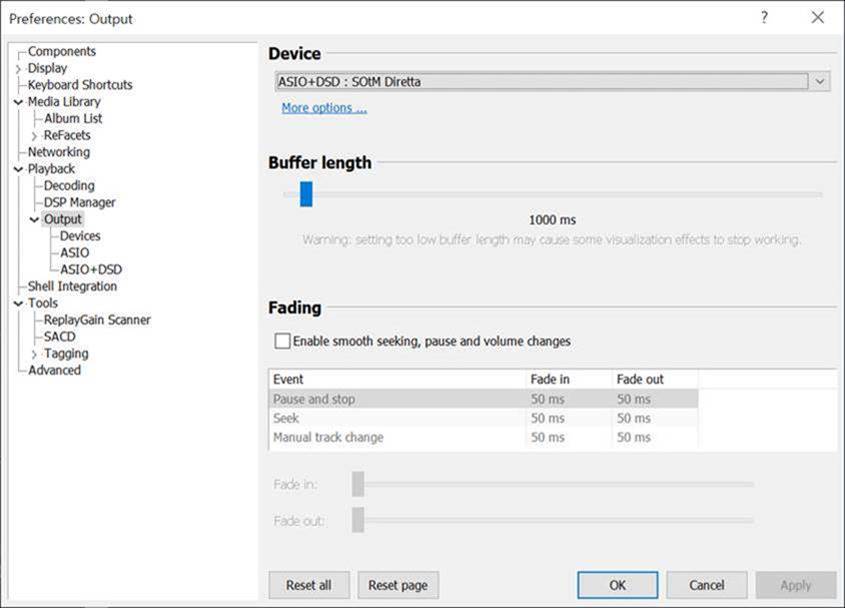
Once installation is complete, launch the SOtM ASIO Configuration tool on the PC. Click the Find button, select the Diretta Target device from the Connect Target list, and click Save to store the settings.
Then, in the music player application (e.g., Foobar2000), set the output device to SOtM Diretta ASIO. When playback starts, the music will be played through the Diretta Target device.

Example Configuration Using Two Eunhasu Devices
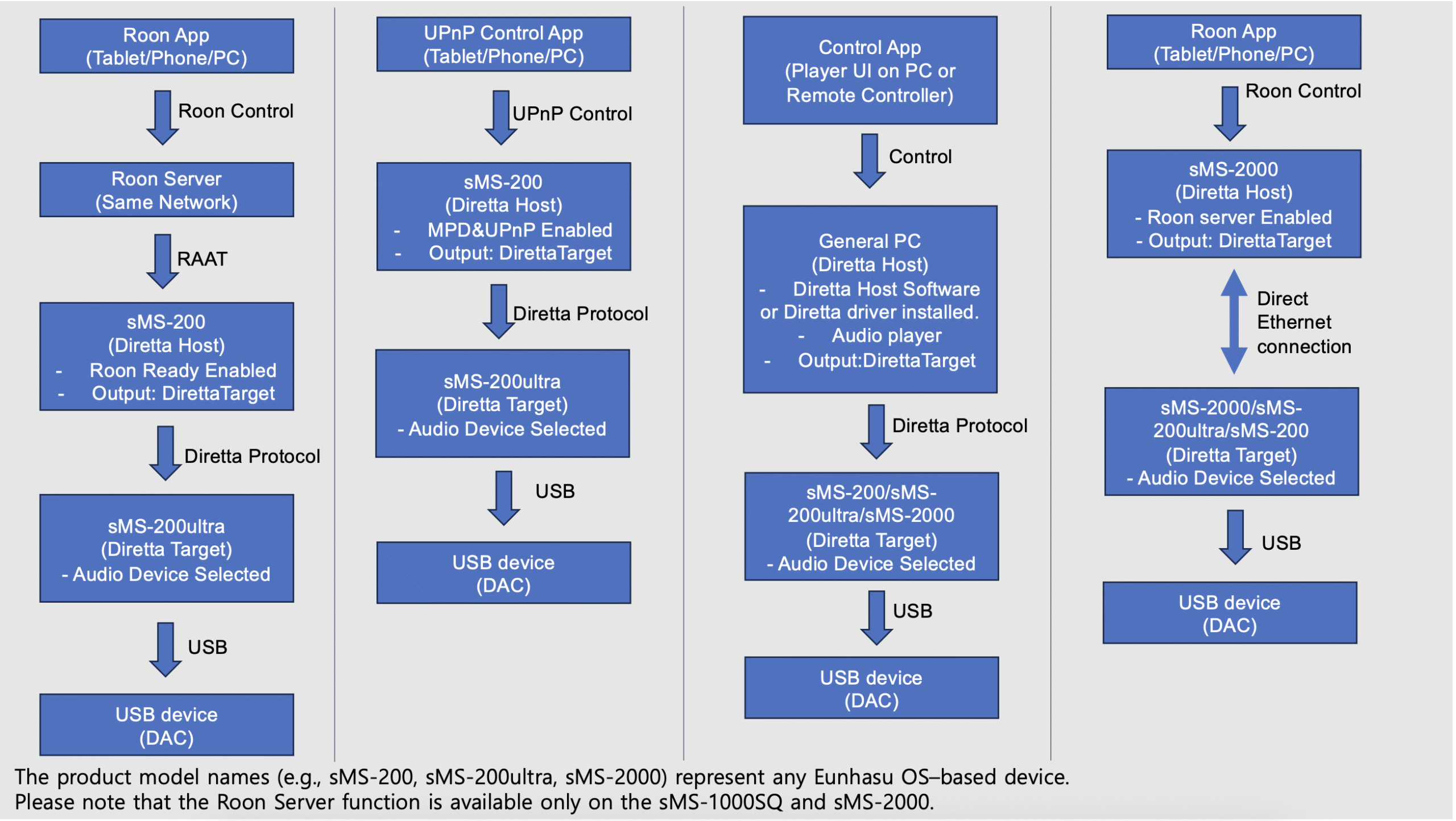
Below is an example configuration demonstrating how to achieve the highest sound quality using two Eunhasu devices. This example introduces a setup using the MPD & UPnP function with the sMS-200 and sMS-200ultra.
If you wish to use Diretta via the Roon Ready function with sMS-200 and sMS-200ultra, the Roon Server must be running somewhere on the same network. In this case:
Configure the sMS-200ultra as the Diretta Target, select the audio device, and run it in Diretta Target mode.
Configure the sMS-200 as the Diretta Host, enable Roon Ready, and select the Diretta Target device as the audio output.
Use the Roon App to play music via Roon Ready.
Direct Ethernet Connection (Optional)
In addition, sound quality can be further improved by using a direct Ethernet connection between the Diretta Host and Diretta Target devices.
For detailed setup instructions, please refer to the following guide:
https://www.sotm-audio.com/sotmwp/how-to-set-up-a-direct-ethernet-connection-between-diretta-host-and-target-eunhasu-v0-5-9/
-
Update both the Diretta Host and Diretta Target devices to the latest Eunhasu OS version (currently v0.6.2).
(Always ensure the firmware is updated to the latest version before use.) -
Before configuring Diretta, connect the USB device (such as a DAC) to the Diretta Target device using a USB cable.
-
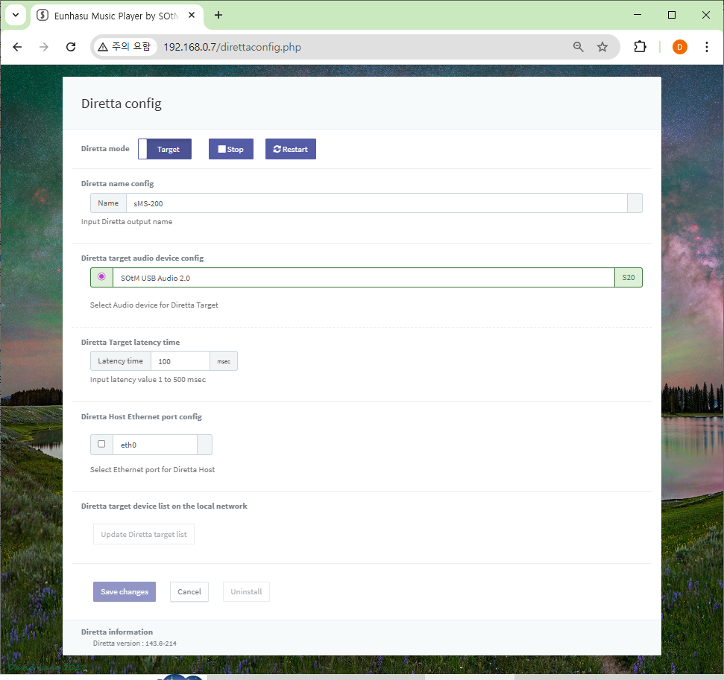
Access the Eunhasu Web GUI on the Diretta Target device and navigate to the Diretta Config page.
-
-
- Set Diretta Mode to Target.
- Select the Diretta Target audio device.
- Click Save Changes.
-
4. Click Start to activate Diretta Target mode.
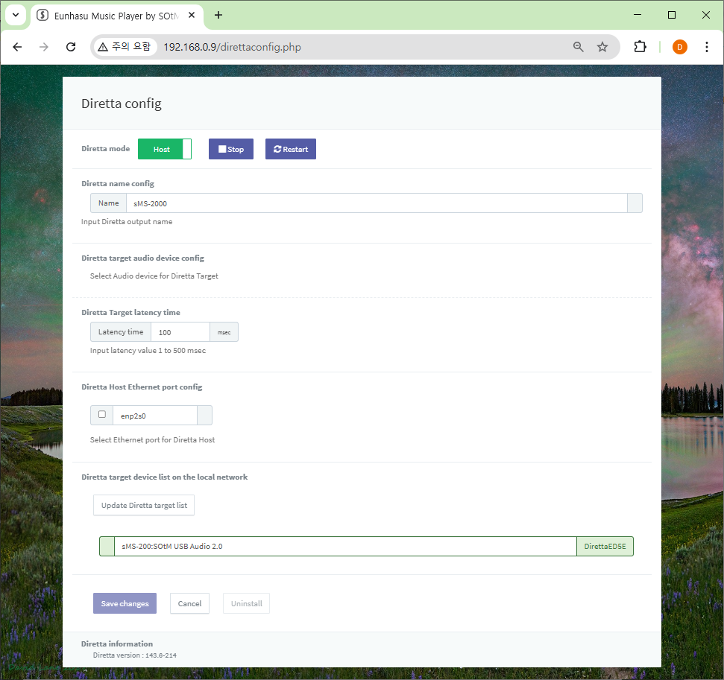
5. Access the Eunhasu Web GUI on the Diretta Host device and navigate to the Diretta Config page.
- Set Diretta Mode to Host.
- Click Save Changes.
6. Click Start to activate Diretta Host mode.
7. Click Update Diretta Target List and confirm that the Target device appears correctly in the list.
8. On the Diretta Host device, go to the Music Player Config page (e.g., MPD & UPnP, Roon Ready), and select the Diretta Target device as the audio output.
(The image below shows an example using MPD & UPnP.)
9. Configure the Audio Device settings according to the specifications of the connected USB device (DAC), then click Save Changes.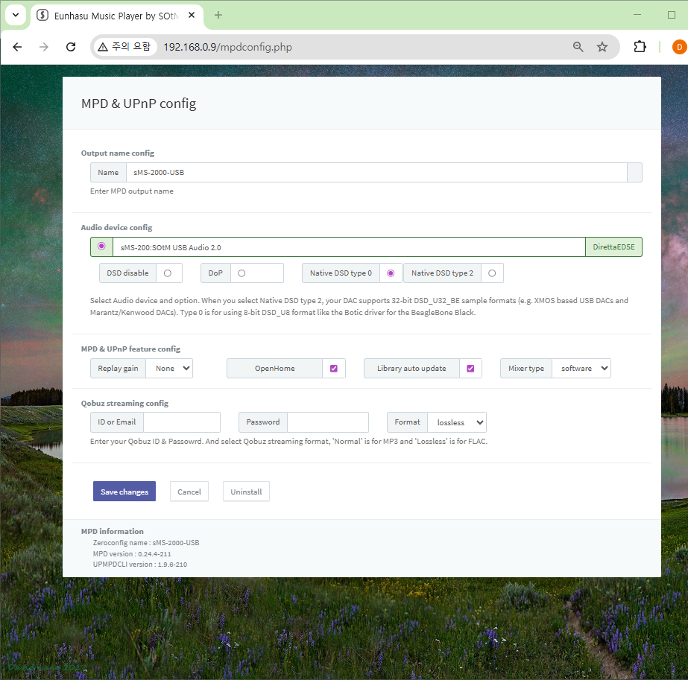
10. Return to the Eunhasu Web GUI main page and activate MPD & UPnP to start music playback.
11. Launch the corresponding control app on your smart device.
12. Enjoy the Soul Of the Music.
Reference Diagram
To help you better understand the concept and usage of Diretta, the block diagram below is provided for your reference.