Eunhasu v0.6.4a alpha version update

Greetings.

We have uploaded the Eunhasu v0.6.4a Alpha version to the test server.

The most significant change in this update is the major performance improvement of the Web GUI main page.
Previously, the slow response time of the main page had a noticeable impact on overall system performance. To resolve this issue, we redesigned the internal processing method.

As a result, the actual processing speed has improved by up to 100 times, and the perceived user experience is approximately 10 times faster.
(A small delay is intentionally added for UI stability.)


Version : V0.6.4a

– Date : 04-03-2026
– Upgraded Web GUI main page.
–   Significantly improved Web GUI main page speed
–   Added Start, Stop, Restart function on Main Web GUI page for Diretta, MinimServer and BubbleUPnP Server
–   Removed the Start icon when starting music app
–   Removed the HQplayer NAA(Networkaudiod)’s Enable and Disable feature but changed to be always Enable


This Alpha version is released for performance testing purposes.
We would greatly appreciate your testing and feedback.

Please especially check the main page speed and overall system responsiveness and share your experience.

Thank you.


16th, April, 2026

Eunhasu v0.6.4c is a maintenance update that addresses an issue where the Eunhasu main screen was not functioning properly.

Other than this fix, the contents are identical to the previous version.


18th, April, 2026

Eunhasu v0.6.4e has been uploaded to the Alpha server.
Two additional features have been added compared to v0.6.4c:

• Added Private CA for security check on browser
This feature adds a certificate so that you can access Eunhasu using https://<eunhasu ip address>.

The reason for this change is that recent browser versions restrict certain features unless the connection is made over HTTPS. To address this, we have added a Private CA (self-signed certificate) to Eunhasu, allowing HTTPS connections and enabling additional functionality.

If you are experiencing abnormal behavior on the Eunhasu main screen, please install this version.
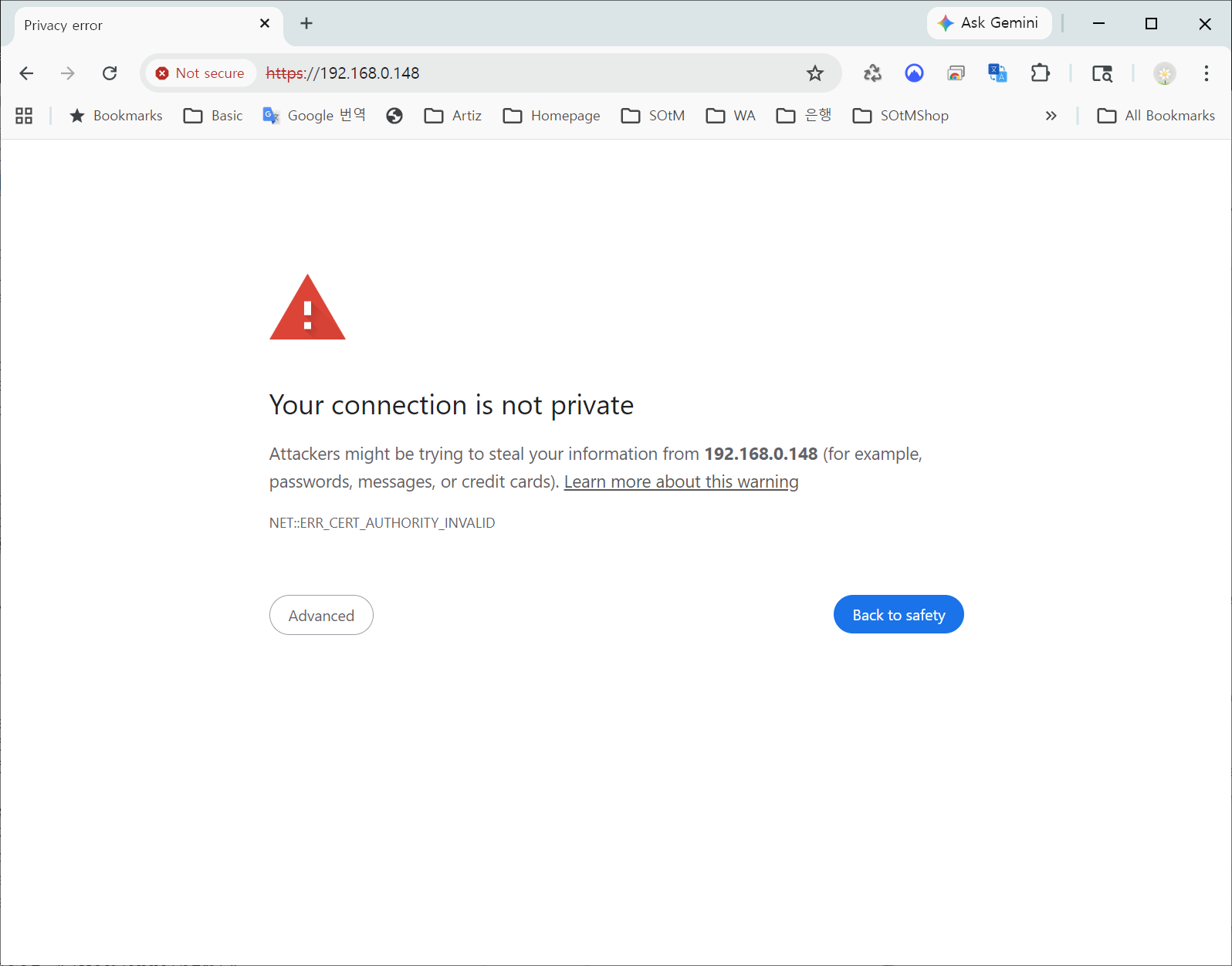
When you first try to connect to http://<eunhasu ip address>, a screen like the image below will appear.
At that point:

Click the “Advanced” button

A second screen will appear
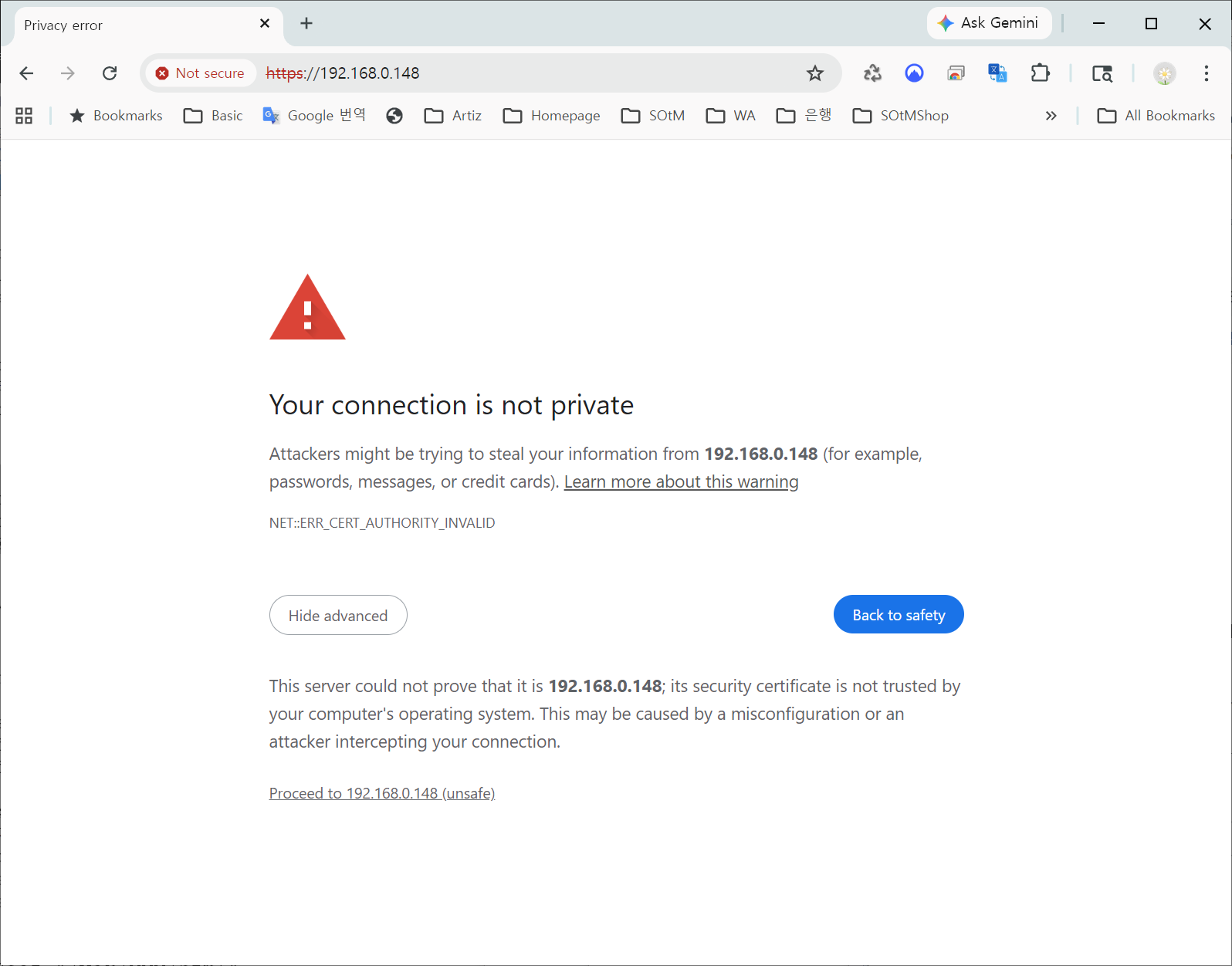
Click “Proceed to xxx.xxx.xxx.xxx” to continue

After doing this once, the warning screen should not appear again, and you will be able to connect normally from then on.


• Added Private CA for security check on browser :This feature is intended for users running the Eunhasu OS on third-party motherboards that we have modified and built into Audio PCs, rather than on the sMB-Q370 motherboard.
For more information about this feature, please contact us by email, and we will provide further guidance separately.


Thank you.

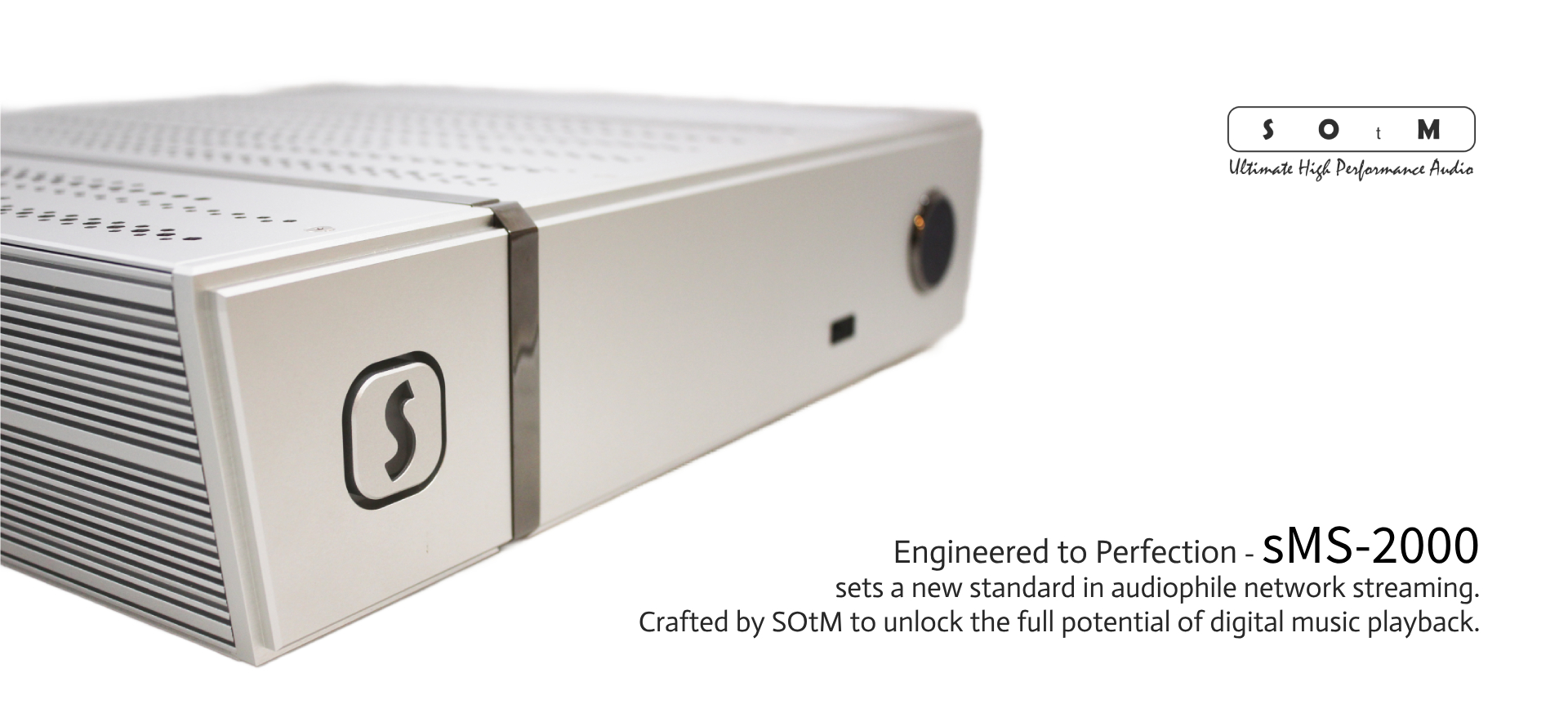
sMS-2000 Featured in The Absolute Sound – April 2026

Greetings !

The SOtM sMS-2000 was reviewed in the April 2026 issue of The Absolute Sound.

The reviewer praised the SOtM digital system centered around the sMS-2000 for delivering highly natural sound, outstanding resolution, and impressive musical presentation.

Particular attention was given to its low-noise design and precise clock synchronization, which enabled exceptional detail, soundstage stability, and an analog-like musical experience.

The review highlighted the sMS-2000 as a truly remarkable digital source, capable of delivering reference-level performance in high-end streaming systems.

Please click the image below to see the full review,

Thank you.


Firmware Update Notice – Eunhasu Version 0.6.3

Greetings !

We’re pleased to announce that the Eunhasu firmware has been updated to Version 0.6.3.

Version : V0.6.3
– Date : 02-23-2026

– Updated Diretta DDS suported version and fixed configuration setting bugs
– Updated Diretta configuration page bugs
– Updated ethernet MTU setting features
– Updated automatic time zone update tool
– Fixed Audio app performance bugs
– Fixed ‘NADAC D’ DAC recognize bug
– Added Lyrioin Music Server
   – Replaced Logitech Media Server
   – Logitech Media Server will be removed
– Removed the Kernel and USB audio module update checking to speed up of the sMS-200
– Fixed minor bugs

Thank you.

2026 Happy New Year!

Greetings,

SOtM will be on holiday from Feb 14th to 18th to celebrate the Lunar New Year.

SOtM may not respond promptly during this period and will return to normal operations on Feb 19th.

In the meantime, contacting us via email will still work regularly.

Again, happy new year !!

Eunhasu OS V0.6.3 Alpha Release Notice

Hello,

This is SOtM.

We are pleased to announce the release of Eunhasu OS V0.6.3 (Alpha).


■ Version Information

– Version : V0.6.3j
– Date : 02-07-2026
– Updated Diretta DDS supported version and fixed configuration setting bugs
– Updated ethernet MTU setting features
– Updated automatic time zone update tool
– Fixed Audio app performance bugs
– Fixed ‘NADAC D’ DAC recognize bug
– Added Lyrion Music Server
   – Replace Logitech Media Server
   – Logitech Media Server will be removed
– Removed Kernel, USB audio module update checking to speed up on sMS-200
– Fixed minor bugs
– Updated snd-usb-audio module version no. to 6.2.15-228


■ Diretta Update (Version diretta-148.00-211.fc36.armv7hl.rpm)
With this update, Diretta has been upgraded to version 148_00, which introduces support for the DDS protocol.

  • sMS-2000 / sMS-1000SQ : Support Maximum MTU: 9014
  • sMS-200 / sMS-200ultra : Support Maximum MTU: 1500

DDS support in Diretta is always enabled and does not provide an on/off option.


■ How to Install Diretta 148_00
To install Diretta version 148_00, please follow the steps below:

1. Update Eunhasu OS to the latest version.
2. Go to the Diretta Config page and remove Diretta.
3. Enable the Beta Repository Server
-> Access: http://<your Eunhasu device IP address>/beta.php
-> Set the Beta server to Enabled and click Save.
4. Return to the Diretta Config page and reinstall Diretta.
→ Diretta version 148_00 will be installed.


■ Notes for PC ASIO Driver Users
If playback issues occur when using the PC ASIO driver with default settings:

-> Open Diretta ASIO Configure
-> Set the Preset Profile to Sync_Low or Sync_Lowest
-> Alternatively, try other profiles to find the optimal setting for your system


■ MTU Configuration for Using Jumbo Frames (sMS-2000 / sMS-1000SQ)
The following instructions describe how to extend the MTU value in order to use Jumbo Frames on the sMS-2000 and sMS-1000SQ:
1. First, verify that audio playback via Diretta works properly with the default MTU 1500 setting.
2. Go to System Config → Ethernet and set the MTU value to 4088 or 9014.
(This setting should only be used in a network environment that supports Jumbo Frames.).

3. Click Save & Reboot to reboot the system.
4. After rebooting, go to the Diretta Config page and configure the following:
-> Set the Diretta Target MTU value to the same as, or lower than, the MTU value set in the System Config page.
-> Set the Diretta External MTU value to match the MTU value configured on the Diretta Host device (such as a PC or another Eunhasu device).
5. Complete the remaining Diretta settings, save the configuration, start Diretta, and confirm that music playback works properly.


■ PC Diretta ASIO Driver Update
The updated Diretta 148_00 ASIO driver for PC is also released together with this update. ASIO with support for MS Mode3, installation of either WinPcap or Npcap is required.
https://www.winpcap.org/devel.htm
https://npcap.com/ 


■ Important Notice Regarding Eunhasu OS Compatibility
With this update, a new verification mechanism has been added to check whether the software is running on an official SOtM product.

As a result, Eunhasu OS will no longer run on Raspberry Pi or general-purpose PCs.

If you are using Eunhasu OS on a PC that was built or modified through SOtM and require Diretta functionality, please contact us in advance. We will assist you so that usage remains possible.


■ Logitech Media Server → Lyrion Music Server
Logitech Media Server (LMS) has been replaced by Lyrion Music Server.

-> Basic usage is the same as LMS.
-> Installation Steps:
1. Remove LMS from the LMS Config page.
2. Enable the Best Repository Server.
3. Reinstall from the LMS Config page.

The following versions will be installed:
-> Lyrion Music Server: 9.0.3-1.20251003
-> Squeezelite: 2.0.0.1541-2.20250929

 After configuring and saving the settings, start the service.
 After a short while, an icon to open the Lyrion Music Server web interface will appear on the main page. Click the icon to begin using it.


■ Updated on 20th, Feb
For the sMS-1000SQ, diretta has been updated to 148.00-212 version.

Thank you.